
How to Do a Digital File Declutter Without Sorting Everything
Table of Contents
You need the proposal you sent last month. Downloads contains three copies. The project folder has a file called “final-new”. WhatsApp has another attachment, but you cannot remember which conversation it came from.
The temptation is to organize everything: every screenshot, receipt, old client folder and half-finished document. That turns a useful task into a weekend project you keep avoiding.
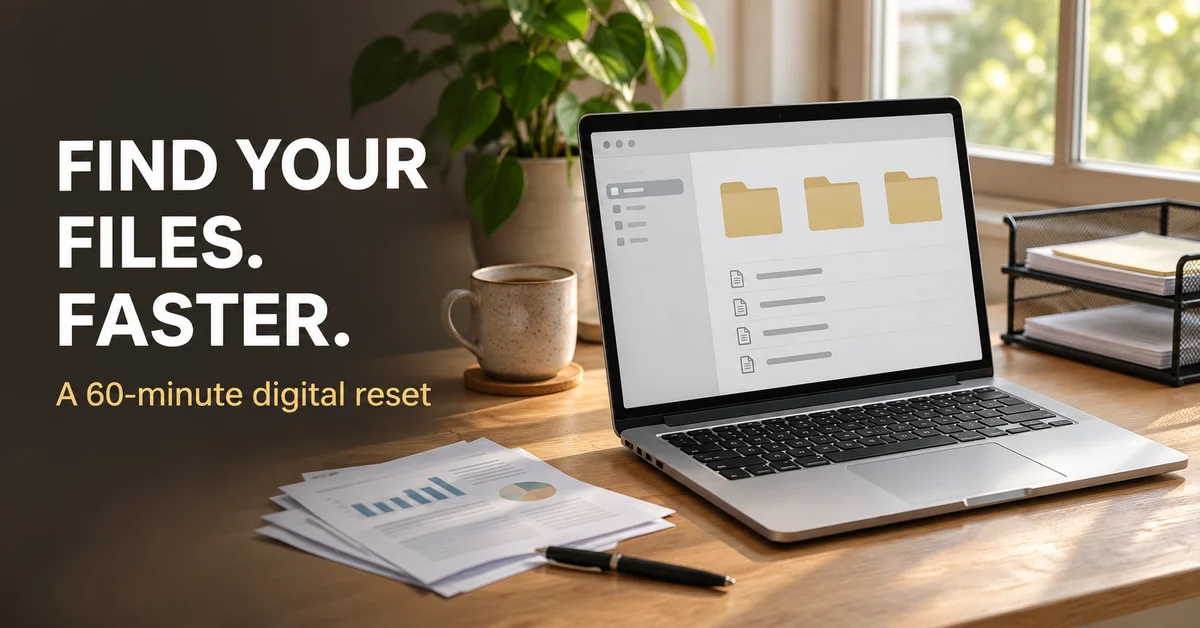
A digital file declutter should start smaller. Organize the documents needed for current work, give new files a destination and separate older material from the active workspace.
I recommend a 60-minute first pass with no bulk deletion. The time limit is a suggested budget, not a promise that an entire drive can be made tidy in an hour.
This guide covers a simple folder structure, a file naming system, a safe first pass through Downloads and a retrieval test. It uses tools you already have and leaves uncertain files for a separate decision.
Why Organizing Every File Usually Fails
The size of the archive makes the task look impossible. More importantly, most of that archive has little to do with today’s work.
You spend half an hour categorizing holiday screenshots while the live proposal remains buried in a message thread. The drive looks slightly neater, but the actual problem survives.
A second mistake is building too many categories before you know how you retrieve things. A document might fit under “Finance”, “Clients”, “2026” and “Projects”. If filing requires choosing between four equally plausible homes, you will postpone it.
A third mistake is treating copies as interchangeable. Two files with the same name can contain different comments, approvals or edits. Deleting one because the names look similar can remove the version you need.
The first pass needs a limited objective: make current work easier to retrieve and keep new material from disappearing into the same pile.
That is different from digital minimalism, which focuses on how technology uses your attention. This guide focuses on where documents live and how you find them again.
The core principle: organize for retrieval, beginning with active work rather than the entire history of your devices.
The Three Things You Need
Your existing file manager. File Explorer, Finder or your cloud service’s normal interface is enough. Use the approved shared workspace for team documents.
A short list of active projects. Write down the work you expect to touch in the next few weeks. This determines what earns attention during the first pass.
A verified recovery option. Before changing files, understand whether the location is local, synced or shared. For important material, confirm your backup process and that you can actually open a recovered or separately saved copy.
The additional software budget is S$0 when you use existing tools. This article does not require a cleaner app, duplicate finder or new cloud subscription.
Do not upload employer documents to a personal cloud account to make the system more convenient. Keep confidential work in approved storage and follow the organization’s file retention rules.
If the workspace is shared, agree before changing its structure. You can begin with your own project shortcuts and a small index without moving anyone else’s files.
Before You Start: Know What a Move or Delete Will Affect
A synced folder is not an isolated copy on one laptop. Microsoft explains that deleting a synced online-only file removes it from the cloud and other devices. A local cleanup can therefore affect the file elsewhere.
Moving or renaming shared material can also disrupt how other people find it, even where the service preserves some links. Treat the shared location as a team system.
Do not use the recycle bin as an archive. Google Drive says trashed files remain there for 30 days before permanent deletion. Recovery windows differ between services and account types.
If the goal is to reduce laptop storage rather than organize work, use the relevant storage feature. OneDrive Files On-Demand can make files online-only without treating the cloud document as unwanted. Online-only files need connectivity to download when required.
For this first pass, leave uncertain files in place. Make an index or review list when moving them would introduce risk. Progress does not require deleting anything.
The Full Digital File Declutter: Step by Step
Step 1: Choose One Workspace and Define Success (5 minutes)
Choose a single scope: your personal work folder, your own Downloads folder or a small project area you control.
Do not start with “all devices”. A laptop, phone, shared drive and three cloud accounts introduce too many different ownership and sync rules for one short session.
Write down three files you expect to need soon. These will become the retrieval test at the end. Choose actual documents, not generic categories.
Examples include the current proposal, the spreadsheet supporting next week’s report and a reference document for a live project.
Check the location’s sync status and recovery arrangements. If they are unclear, use the session to map the active files and create shortcuts rather than moving or renaming them.
Set a timer for the whole session. The timer stops scope expansion; it is not a reason to rush a file decision.
What you end up with: One defined workspace, three retrieval targets and a clear limit on the task.
Time comparison: Budget five minutes for scope instead of opening every storage location and creating a much larger project.
Step 2: Create Three Clear Destinations (10 minutes)
For files you own and control, use three destinations: Inbox, Active and Archive.
Inbox holds new material awaiting a decision. Active holds current projects. Archive holds completed material you still need to keep. These are functional labels, not a mandatory naming convention.
Inside Active, create a folder for each live project that needs multiple documents. Use names you would recognize in a search, such as “Website refresh” or “Supplier review”.
Keep ongoing reference material in a clearly named location if your work needs one. Do not force a frequently used reference guide into an archive simply because it is old.
Avoid adding several levels of subfolders before there are enough files to justify them. A small project can often work with one folder and descriptive filenames.
In a shared workspace, adopt the team’s existing structure. Your “Active” view can be a list of links to the authoritative folders rather than a new set of copied documents.
Write one sentence describing the system: “New downloads go to Inbox, current work lives in project folders and completed personal projects move to Archive after review.”
What you end up with: A small filing rule you can explain without a diagram.
Time comparison: Allow 10 minutes to establish useful destinations instead of designing a taxonomy for every possible future file.
Step 3: Gather the Files for Current Work (15 minutes)
Use the active-project list to locate only the documents you need now. Search by project name, sender or a distinctive word from the file.
Confirm which copy is authoritative before moving anything. The latest modified date is a clue, not proof of approval. Check the document’s contents and the context in which it was shared.
For your own loose local documents, move the confirmed working copy into the appropriate project folder when it is safe to do so. For shared documents, keep the original location and add a shortcut or index link.
If two versions differ, record the conflict. Do not merge or delete them during a timed cleanup unless you understand the differences and have authority to decide.
For a document found in a chat, decide whether it is reference material or the working source. A downloaded attachment can become stale as soon as someone updates the shared original.
Put one short project index at the top level if files must remain in several approved locations. Include the project name, the authoritative folder and the current document link.
What you end up with: A reliable route to current work, without duplicating an entire shared drive.
Time comparison: Budget 15 minutes for active documents. Older projects remain outside this first pass.
Step 4: Rename Only the Files That Need Clarity (10 minutes)
Start with confusing names such as “scan001”, “new document” or “final-final”. Keep clear existing names unchanged.
Choose a simple pattern that suits your work. For personal local files, one option is project-document-date-status, using a date only when it helps distinguish the document.
For example, “supplier-review-comparison-2026-11-04-draft.xlsx” communicates more than “comparison-new.xlsx”. A meeting note could use “website-refresh-meeting-2026-11-04.docx”.
Use year-month-day dates when chronological filename sorting matters. Choose a small set of meaningful status labels such as draft, submitted and approved, and apply them honestly.
Do not label something approved because you sent it. Approval is a state that needs evidence, not a tidier name.
For shared online documents with version history, follow the team’s approach rather than producing a separate copy for every edit. Avoid renaming anything that a workflow, application or colleague depends on without checking first.
Keep a technical file’s extension intact. Rename the descriptive part, not the type suffix.
What you end up with: Clear names for the small group of documents that caused retrieval problems.
Time comparison: Use 10 minutes for targeted renaming rather than standardizing years of files that already work well enough.
Step 5: Triage Downloads and Older Material (15 minutes)
Start with the newest files and the ones connected to active projects. For each, choose one decision: file it, leave it pending review or mark it as an obvious disposable item.
This workflow does not require you to delete the disposable items during the session. If you do delete later, check the location, contents and recovery arrangements first.
For uncertain material, create a review list with the existing path and the question that needs answering. “Which signed copy is authoritative?” is a useful review item. “Sort this someday” is not.
Archive completed personal projects only when their ownership and dependencies are clear. Moving a folder can affect linked assets, application references or other people’s expectations.
Do not bulk archive a shared folder because you have finished with it. Another person may still be using its documents. Ask the owner or keep a personal view that hides it from your active list.
Leave legal, financial and employer retention decisions to the relevant requirements. This organization method does not establish how long those records should be kept.
Finish by scheduling a small follow-up for unresolved items. Give it a scope, such as “confirm the current signed agreement”, rather than “clean the drive”.
What you end up with: A more useful active workspace and a specific list of unresolved decisions.
Time comparison: Allow 15 minutes for triage. A large backlog needs later sessions rather than faster guesses.
Step 6: Test Retrieval and Set a Maintenance Slot (5 minutes)
Return to the three target files from Step 1. Find each one using the folder structure, index or search method you intend to use next time.
Check that the file opens and is the correct version. A neat path to the wrong document fails the test.
If a target is still hard to find, change the smallest relevant thing. Rename an unclear file, fix the index link or remove a redundant folder level. Do not rebuild the whole system because one label was weak.
Choose one maintenance slot during your weekly review. Process the incoming files connected to current work and resolve one uncertain item.
Write down where new files should go. Downloads can remain the technical landing zone while your weekly routine moves useful documents into their permanent homes.
What you end up with: A tested route to important files and a defined way to handle the next batch.
Time comparison: Spend five minutes checking retrieval instead of judging success solely by how tidy the desktop looks.
A Worked Example: One Project Across Four Locations
Imagine a freelancer preparing a proposal. The brief is in email, the draft is on the desktop, the costing sheet is in Downloads and the client’s reference files live in a shared folder.
Copying everything into one personal cloud folder would create extra versions and could violate the client’s handling expectations. The better answer is a project folder for the freelancer’s own files plus an index linking to the approved references.
The freelancer confirms the current costing sheet, gives it a useful name and records the shared reference location. The draft gains a clear status, and the next action goes into the task list.
An old attachment remains on the review list until its contents can be compared. It does not have to disappear for the reset to be useful.
This is an illustrative scenario. The point is to improve the route to the working documents while respecting where the authoritative copies belong.
The Full Time Breakdown
These times are suggested budgets for a limited first pass. They are not measured averages or guaranteed savings.
| Task | All-at-once approach | Suggested first pass |
|---|---|---|
| Set scope | Open every device and account | Five minutes for one workspace |
| Build structure | Create categories for everything | 10 minutes for clear destinations |
| Gather files | Sort the full archive chronologically | 15 minutes for active work |
| Rename | Standardize every filename | 10 minutes for confusing names |
| Handle backlog | Decide every old file immediately | 15 minutes for triage and review notes |
| Check the result | Admire an empty desktop | Five minutes to retrieve three files |
| Total | No defined stopping point | 60 minutes |
If the workspace contains thousands of loose files, success means the current work is easier to find. The old pile can remain visible as a separate project.
What This File Reset Cannot Do
It cannot decide document ownership for you. A clear folder structure does not establish which copy has approval or who may change it.
It cannot replace backup or recovery planning. A tidy workspace can still lose data. Sync and backup solve different problems, and neither should be assumed to cover every mistaken change.
It cannot resolve a team’s conflicting conventions alone. Use a shared agreement for shared work. Personal shortcuts can improve your view while that agreement is being made.
It cannot remove all digital distraction. Finding the right file helps the work session start. Notifications and habitual checking require their own changes, covered in the digital minimalism guide.
Five Rules That Keep the System From Growing Back
File at a natural stopping point. Save useful documents into their project home when a task ends, rather than interrupting focused work to organize every incoming item.
Keep one authoritative working copy. Link to it where possible. Record why a separate copy exists when one is genuinely required.
Use names you would search for. Project, document type and a relevant date are more useful than private abbreviations you will forget.
Let the structure stay shallow. Add a subfolder when it solves a retrieval problem, not because a template includes one.
Review uncertain items with a question. The question gives the next session a decision to make. A folder full of “miscellaneous” gives it another pile.
For focused work, prepare the file links before the session begins. The deep work guide explains how to protect that session once the materials are ready.
The Budget Version: A 15-Minute Retrieval Reset
Take five minutes to list your current projects and locate the most important document for each. Spend five minutes creating an index with links to those files. Use the final five minutes to rename one confusing personal file and schedule a follow-up.
Do not move shared folders or touch uncertain duplicates. The short version improves access while leaving larger organization decisions for another day.
Its trade-off is that the storage locations remain messy. You gain a usable route through them rather than a complete filing system.
That is enough when a deadline is close. Organizing the archive should not become a way to postpone the work you needed the file for.
Frequently Asked Questions
Should I delete duplicate files during a digital declutter?
Only after confirming they are redundant and checking ownership and recovery arrangements. Similar filenames and file sizes are not enough to establish that two documents are interchangeable. Leave uncertain copies for a separate comparison.
Do I need the same folder structure on every device?
No. You need a clear route to the files required on each device. Avoid creating separate working copies merely to make layouts match, and keep employer documents inside approved systems.
How often should I clean up Downloads?
Start with a short weekly slot and adjust it to your incoming volume. Move useful files into their project homes and note uncertain items for review. The goal is a trustworthy landing zone, not an empty folder at all times.
Can I move all old files into one archive folder?
For personal material, that can be a practical staging step if you understand the dependencies and preserve the existing structure. Shared folders and application-managed files need more care. If moving is uncertain, create an index instead.
Will deleting synced files free only my laptop’s storage?
Do not assume that. A deletion in a synced location can remove the cloud file and affect other devices or users. Use the service’s online-only storage feature when that is your actual goal, and keep needed files available before working offline.
What if my team refuses to change its filing system?
Begin with a personal index of links to authoritative documents. It can improve retrieval without renaming or relocating shared files. Use specific examples of repeated retrieval problems if you later propose a team change.
Final Thoughts
A useful digital file declutter makes current work easier to find and gives incoming documents a clear destination.
Choose one workspace, locate the files that matter now and test whether you can open the right version. Leave uncertain material for a decision with enough time and context.
Start with the 15-minute index if the full reset feels too large. The next time you need a document, the system should help you get back to the work.
→ Add a small file check to your weekly review
→ Prepare a focused work session around the right documents
Which file do you always end up searching for twice? Share the problem in the comments.
Continue reading: